• 24/7 Human Support
  • Family-Friendly — No Adult Content

Setup Guide: From Payment to Watching

A calm, step-by-step guide to getting started. The text carries the instructions; the pictures are only there to help. If you get stuck, a real person is available.

Exact app names and steps for each device will be added once they are verified.

Before You Start

  • Confirm your device is compatible. Ask support if you are unsure.
  • Check that your device is connected to your home network.
  • Make sure your internet speed is suitable (see the internet guidance below).
  • Have your setup details ready. They are sent after payment confirmation.
  • Set aside a quiet ten minutes. Take your time.

Keep your details private. Never share your account password, your full card number, a wallet seed phrase or a private key with anyone, including in messages to support. We will never ask for them.

The Setup Journey in Four Steps

  1. Step 1: Choose a plan

    Pick one or two devices and a plan length in the pricing section.

  2. Step 2: Receive your setup details

    After payment is confirmed, setup details are sent to you. Keep them private.

  3. Step 3: Install on a compatible device

    Follow the instructions in your setup details for your device. If you are unsure which app to use, ask support.

  4. Step 4: Start watching

    Once installed, open the app and start watching. If something does not work, contact support.

General Guidance by Device Type

These steps are general. Your setup details tell you exactly which app to use for your device.

Smart TV

  1. Connect the TV to your home network.
  2. Open the TV's apps area.
  3. Install the app named in your setup details.
  4. Open the app and enter the setup details as instructed.

Streaming device or TV box

  1. Connect the device to the TV and to your home network.
  2. Open the device's apps area.
  3. Install the app named in your setup details.
  4. Open the app and enter the setup details as instructed.

Smartphone or tablet

  1. Connect to your home Wi-Fi.
  2. Open your device's app store.
  3. Install the app named in your setup details.
  4. Open the app and enter the setup details as instructed.

Computer

  1. Connect the computer to your home network.
  2. Follow your setup details to the app or browser page they name.
  3. Open it and enter the setup details as instructed.
  4. Ask support if your setup details do not mention your computer.

Detailed, verified guides for each device will be added later.

Your Internet Connection

  • As general guidance, allow at least 10 Mbps for each active HD stream.
  • For 4K, allow at least 25 Mbps for each active stream.
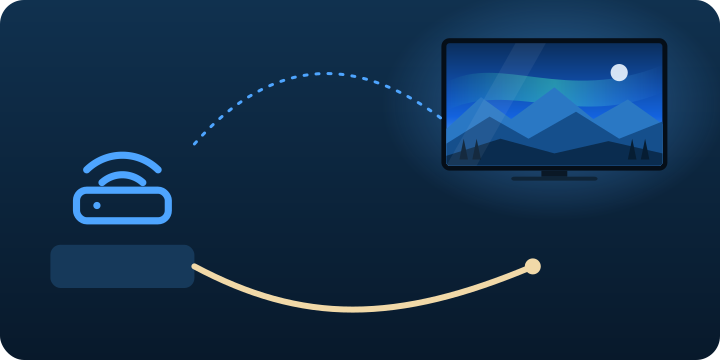
  • A wired (Ethernet) connection is recommended where possible.
  • Other people using the same connection at the same time can reduce what is available to you.

This is guidance only and does not promise any particular picture quality. Results depend on your device, home network, internet provider and how many people share the connection.

A router connected to a television by a wireless path and by a cable, with the cable drawn thicker

Common Setup Problems

The picture freezes or buffers

Check other devices are not using much of your connection, move closer to your router or use a cable, and restart your device and router. If it continues, contact support.

The app will not open

Restart the device, check it is connected to the internet, and make sure the app is up to date. If it still does not open, contact support with your device model.

My setup details are not accepted

Check for typing mistakes and extra spaces. If they still fail, contact support. Do not share your password or card details.

There is no sound

Check the volume and mute settings on the device and the TV, and try a different audio setting. If there is still no sound, contact support.

I have not received my setup details

Check your spam folder first, then contact support.

Setup Questions

How long does setup take?

It depends on your device and your connection. We do not promise a specific time. Support can help if you get stuck.

Do I need technical skills?

No. The steps are written in plain language, and a real person can help if you would like a hand.

Can I set up more than one device?

That depends on your plan: one or two devices.

Which app should I install?

Your setup details name the app for your device. If you are unsure, ask support.

Need a Hand with Setup?

A real person can help you through it, day or night. Customers normally receive a same-day reply.

Scroll to Top